SSH VSCode as Root: Say Goodbye to Permission Headaches

When working on a remote server with VSCode, you may run into an issue where you need to modify or create files that require root privileges.
You may get an error like this:
NoPermissions (FileSystemError): Error: EACCES: permission denied, open ...
Handling permissions can be a bit of a headache...
How to Fix
There is a simple fix for this issue. You can use the extension Save as Root in Remote - SSH
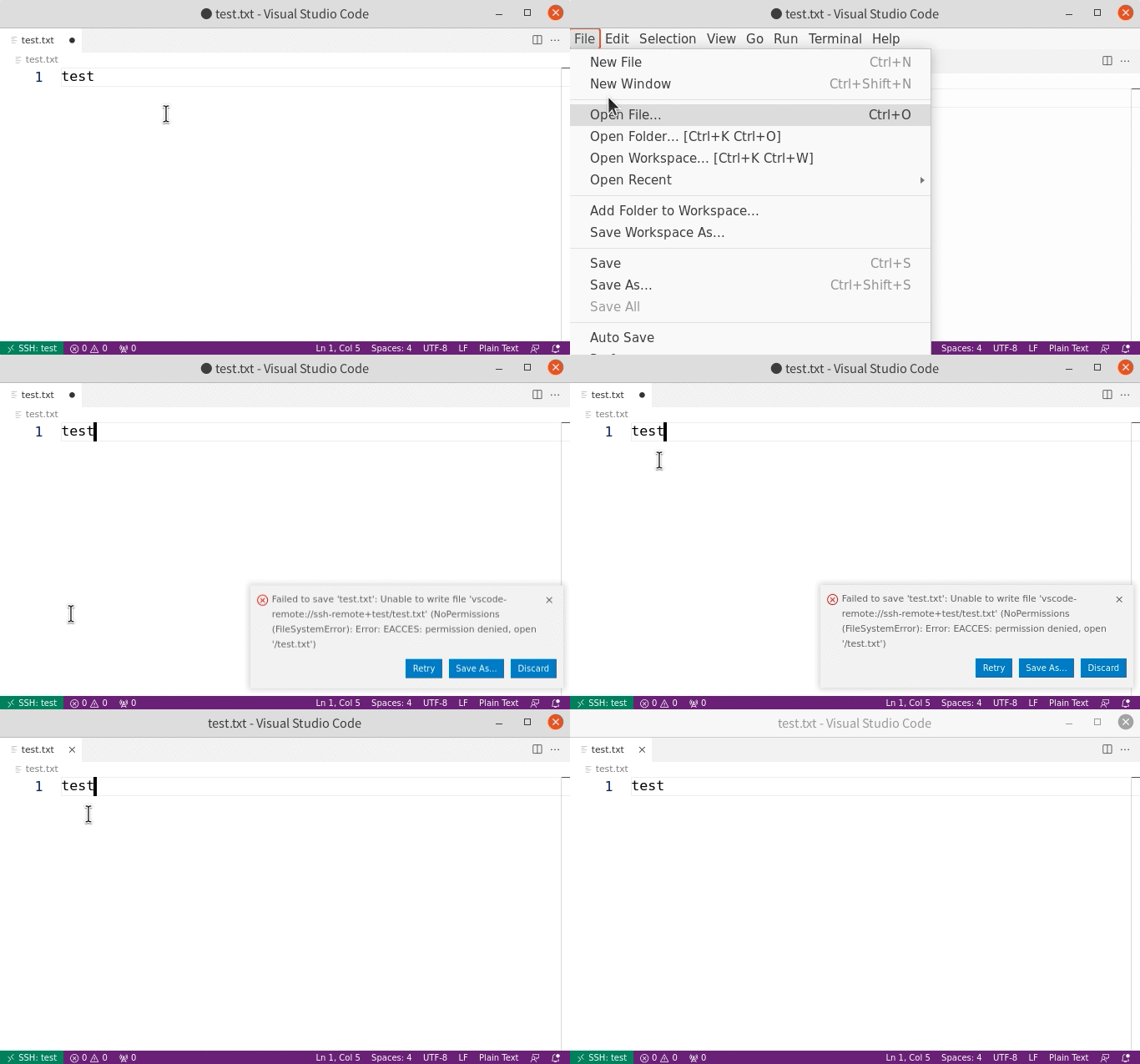
Just install the extension, and when you need to save a file as root, just ctrl+shift+p and type "Save as Root".
How does it work?
The magic happens in this file: extension.js
 return new Promise((resolve, reject) => {

// 1. Authenticate with `sudo -S -p 'password:' sh`.
// 2. Call `echo file contents:` to inform the parent process that the authentication was successful.
// 3. Write the file contents with `cat <&0 > "$filename"`.

const p = execFile(config.get("command", "sudo"), [...(user === "root" ? [] : ["-u", user]), "-S", "-p", "password:", `filename=${filename}`, "sh", "-c", 'echo "file contents:" >&2; cat <&0 > "$filename"'])
        p.on("error", (err) => {
            stopTimer()
            reject(err)
        })
 }
It uses the sudo command to authenticate with the root user, and then writes the file contents to the file.
Conclusion
Working with SSH and VSCode can be a bit of a headache, but this extension makes it a lot easier. I hope this post helped you fix your permission issues. If you have any questions, feel free to leave a comment below.
Comments
Keep reading

Generate diagrams using ChatGPT
Hey there! In this short post, we'll explore how to generate diagrams using ChatGPT. Let's get started.

Why You Should Disable Source Maps in Production
Sourcemap is a powerful tool for developers when debugging their JavaScript code. They provide a way to map the minified, production code back to the original, unminified source…

Modifying Nginx's Try_Files for Angular Redirection
When deploying an Angular app to a server, you may run into an issue where the routing doesn't work properly.